Click on "File->Preferences" to display the preferences dialog.
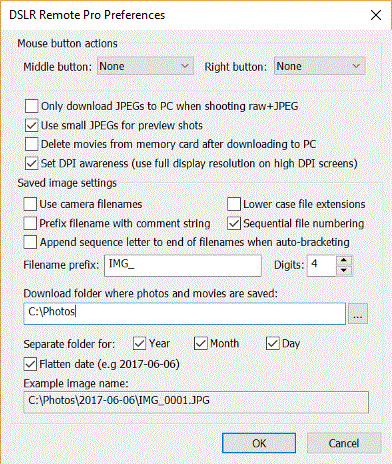
Mouse Button Actions
The middle and right mouse buttons can be assigned to release the shutter or take pictures in preview mode. This allows you to use the mouse like a simple cable release.
Note: This only works if the mouse pointer is over the main window and is not over one of the controls.
Only Download JPEG Images to PC
Normally when the camera is set to raw+JPEG both the raw files and the JPEGs are downloaded to the PC. Select the "Only download JPEGs to PC when shooting raw+JPEG" option to save the raw and JPEG files to the camera's memory card and only download the JPEG file to the PC when shooting raw+JPEG and using the save to camera and PC option. This is reduces the time it takes to download images to the PC which can be useful if there is a slow link between the camera and PC (e.g. a wifi connection with a Canon EOS 6D or when using a Cat 5 USB 1.1 extender cable) and you need to see previews of each shot on the PC.
Important: Please make sure there is a memory card with plenty of space in the camera otherwise the raw files may not be saved. Also, don't forget to copy the raw files to the PC after the shoot.
Preview Images
The default setting when taking preview shots is to switch to small JPEG images to reduce the file size and speed up the download time. Recent cameras have much faster USB 2.0 interfaces and can download images much faster making download speed less of an issue. When "Use small JPEGs for preview shots" is not selected DSLR Remote Pro for Windows will use the current image size and quality when takinh preview shots.
(This option is ignored when using the original EOS-1D or EOS-1Ds cameras).
Delete Movie Files
Movies files are stored on the camera's memory card and have to be separately downloaded to the PC. When the "Delete movie files from memory card after downloading to PC" option is selected movie files will be automatically deleted from the camera's memory card after they have been successfully downloaded to the PC to free up space on the memory card. Please see the section on video capture for more information.
Some tablets and laptops have very high resolution screens and the way Windows displays applications will depend on whether they are "DPI aware" or not. Older applications which are not high DPI aware are scaled up to avoid the text being too small to read. This means that the resolution of the screen available to the application is less than the actual screen resolution. The amount of display scaling depends on the "size of text, apps and other items" setting in the Windows display settings.
Newer applications that are high DPI aware automatically scale the text so that it can be read and can use the full resolution of the screen.
DSLR Remote Pro has the option to operate as a "DPI aware" application and use the full screen resolution or to behave like a legacy application with a display that is scaled by Windows.
Example: Microsoft Surface Pro 4 tablet has a screen resolution of 2736x1824 pixels
If DSLR Remote Pro is run with the "Set DPI awareness" option set the screen images used in photo booth mode will need to be 2736x1824 pixels in size to fill the screen.
If the "Set DPI awareness" option is not set the size of the screen images will depend on the "size of text, apps and other items" selected in the Windows display settings:
If it is set to 150% the screen images need to be 1824x1216 pixels
If it is set to 200% the screen images need to be 1368x912 pixels
Recommendation: select the "DPI aware" setting for all new photo booth screen designs and only disable it if you have old designs which don't fill the screen (you may also need to adjust the "size of text, apps and other items" Windows display setting)
Specifying the download folder
These settings control where images are stored on the computer's hard disk. The edit box displays the base folder for images and can be changed by typing directly into the edit box or by clicking on the "..." button and using the folder browser. If the Year, Month and Day checkboxes are not checked this will be the folder in which all images and videos are stored.
Note: If the folder does not already exist it will be created when the photo or video is saved.
The Year, Month and Day checkbox control the automatic generation of subfolders according to the computer's date. The example image name shown at the bottom of the dialog shows how the various settings are combined. Select the "Flatten date" checkbox to combine the year, month and day into a single subfolder e.g. in the example above:
June 6, 2017 with "Flatten date" unchecked gives "C:\Photos\2017\06\06"
With "Flatten date" checked it gives "C:\Photos\2017-06-06"
You can also use tokens when specifying the download folder e.g. "C:\%Y\%T" would give the year followed by the camera model.
When "Use camera filenames" is selected DSLR Remote Pro for Windows uses the same filenames for images saved to the PC as the camera uses for images saved to its memory card (when the option to save images to camera and PC is used). If the option to save images to the PC only is used the filenames from the camera will start from 0001 each time the camera is connected e.g. IMG_0001.CR2, IMG_0002.CR2 etc. To avoid overwriting existing files DSLR Remote Pro for windows will automatically add a number to the end of the filename e.g. IMG_0001_1.CR2. The sequential file numbering and append sequence letter to filenames when auto-bracketing options are ignored when camera filenames are used.
Note: Camera filenames are not available with older cameras (i.e. camera which don't use the CR2 raw file format).
By default image filenames are in upper case e.g. IMG_0001.JPG or IMG_0001.CR2. If the "Lower case file extensions" checkbox is selected images will be saved with lower case file extensions e.g. IMG_0001.jpg or IMG_0001.cr2.
When the "Sequential file numbering" checkbox is set DSLR Remote Pro for Windows stores images using a numeric sequence number when they are saved to the PC's hard disk. It scans the output directory for existing images and uses the lowest available sequence number e.g. if the output directory already contains the image 0123.JPG DSLR Remote Pro for Windows will save the next image as 0124.JPG. DSLR Remote Pro for Windows will then continue numbering from that point even if the images are removed from the directory while it is running. This is to prevent duplicate filenames when images captured by DSLR Remote Pro for Windows are immediately removed from the output directory e.g. when using a program to automatically send the images to a picture desk using FTP.
When the "Sequential file numbering" checkbox is not set DSLR Remote Pro for Windows scans the output directory for existing images and uses the lowest available number to give a unique filename e.g. if the output directory already contains the image 0123.JPG DSLR Remote Pro for Windows will save the next image as 0124.JPG.
You can also use tokens when specifying the download folder e.g. "C:\%Y\%T" would give the year followed by the camera model.
When "Append sequence letter to end of filenames when auto-bracketing" is selected auto-bracketed filenames have the same image number and a sequence letter added to each shot for easy identification. e.g. a 3-shot sequence might give filenames 0001a.JPG, 0001b.JPG and 0001c.JPG as opposed to 0001.JPG, 0002.JPG and 0003.JPG when this option is switched off.
Select the "use camera filenames" option if you want DSLR Remote Pro for Windows to use the same names for images saved to the PC as those saved to the camera's memory card. Please note that camera filenames may not be available with older camera models.
JPEG images are saved with a .JPG file extension e.g. 0001.JPG, 0002.JPG etc.
Raw images from current EOS cameras are saved with a .CR2 file extension. If raw+JPEG mode is selected the JPEG image will be saved as the same filename as the raw file but with a .JPG file extension e.g. 0001.CR2 and 0001.JPG.
Raw files from older EOS cameras (e.g. Canon EOS 10D) are saved as two files: the CRW file containing the raw image data and the THM file containing a small JPEG thumbnail image. Raw images are saved as: 0001.CRW and 0001.THM, 0002.CRW and 0002.THM, 0003.CRW and 0003.THM etc.
Raw images from the EOS-1D and EOS-1DS are saved with a .TIF file extension. If raw+JPEG mode is selected the JPEG image will be saved as the same filename as the raw file but with a .JPG file extension e.g. 0001.TIF and 0001.JPG.
You can specify an optional prefix to be added at the start of each image's filename e.g. the prefix "studio shoot " would result filenames like "studio shoot 0001.JPG", "studio shoot 0002.CR2" etc.
The number of digits used in the filenames can be specified from 0 to 10. When this is set to 1 or more the filenames will always contain a number and this will be padded with leading zeroes if required. If it is set to 0 and a filename prefix is defined the filename will use the prefix unless the file already exists in which case it will add _ followed by the lowest available number to make the filename unique. Please note that setting the number of digits to 0 may not number raw and JPEG images correctly when shooting RAW+JPEG.
Example 1: Filename prefix: IMG, number of digits: 0
Images will be saved with the following names: IMG.JPG, IMG_1.JPG, IMG_2.JPG... IMG_10.JPG
Example 2: Filename prefix: IMG, number of digits: 1
Images will be saved with the following names: IMG1.JPG, IMG2.JPG, IMG3.JPG... IMG10.JPG
Example 3: Filename prefix: IMG_, number of digits: 4
Images will be saved with the following names: IMG_0001.JPG, IMG_0002.JPG, IMG_0003.JPG... IMG_0010.JPG